Description
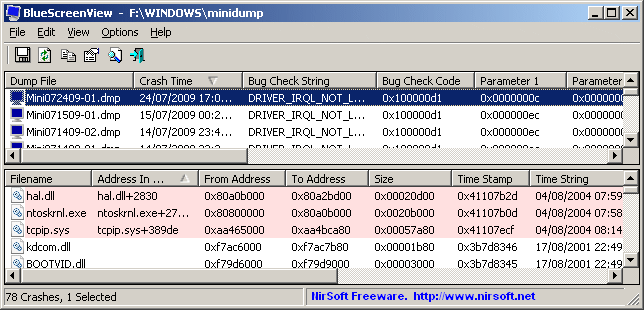
BlueScreenView scans all your minidump files created during 'blue screen of death' crashes, and displays the information about all crashes in one table. For each crash, BlueScreenView displays the minidump filename, the date/time of the crash, the basic crash information displayed in the blue screen (Bug Check Code and 4 parameters), and the details of the driver or module that possibly caused the crash (filename, product name, file description, and file version).
For each crash displayed in the upper pane, you can view the details of the device drivers loaded during the crash in the lower pane. BlueScreenView also mark the drivers that their addresses found in the crash stack, so you can easily locate the suspected drivers that possibly caused the crash.
Versions History
- Version 1.31:
- Added 'Google Search - Bug Check+Driver' for searching in Google the driver name and bug check code of the selected blue screen.
- Version 1.30:
- Added 'Dump File Size' column.
- Version 1.29:
- You can now send the list of blue screen crashes to stdout by specifying an empty filename ("") in the command-line of all save parameters.
For example: bluescreenview.exe /stab "" > c:\temp\blue_screens.txt
- You can now send the list of blue screen crashes to stdout by specifying an empty filename ("") in the command-line of all save parameters.
- Version 1.28:
- Added 'Add Header Line To CSV/Tab-Delimited File' option. When this option is turned on, the column names are added as the first line when you export to csv or tab-delimited file.
- Version 1.27:
- Fixed issue: removed the wrong encoding from the xml string, which caused problems to some xml viewers.
- Version 1.26:
- Fixed 'DumpChk' mode to work properly when DumpChk processing takes more than a few seconds.
- Version 1.25:
- Added 'DumpChk' mode, which displays the output of Microsoft DumpChk utility (DumpChk.exe). You can set the right path and parameters of DumpChk in 'Advanced Options' window. By default, BlueScreenView tries to run DumpChk from '%programfiles%\Debugging Tools for Windows'
- The default MiniDump folder is now taken from HKEY_LOCAL_MACHINE\SYSTEM\CurrentControlSet\Control\CrashControl
- Version 1.20:
- Added 3 new columns in the upper pane: Processors Count, Major Version, Minor Version.
- Added 'Explorer Copy' option, which allows you to copy dump files to the clipboard and then paste them into Explorer window.
- Version 1.15:
- Added option to view the blue screen list of multiple computers on your network. The computer names are specified in a simple text file. (See below).
- Added Combo-Box to easily choose the MiniDump folders available in the hard-disks currently attached to your computer.
- Added 'Computer Name' and 'Full Path' columns.
- Version 1.11:
- Added /sort command-line option.
- Version 1.10:
- Added accelerator keys for allowing you to toggle between modes more easily.
- Added command-line options for saving the crash dumps list to text/csv/html/xml file.
- Added command-line option for opening BlueScreenView with the desired MiniDump folder.
- Fixed focus problems when opening the 'Advanced Options' window.
- Added 'default' button to the 'Advanced Options' window.
- Added 'processor' column - 32-bit or x64.
- Version 1.05 - Added support for x64 MiniDump files.
- Version 1.00 - First release.
BlueScreenView Features
- Automatically scans your current minidump folder and displays the list of all crash dumps, including crash dump date/time and crash details.
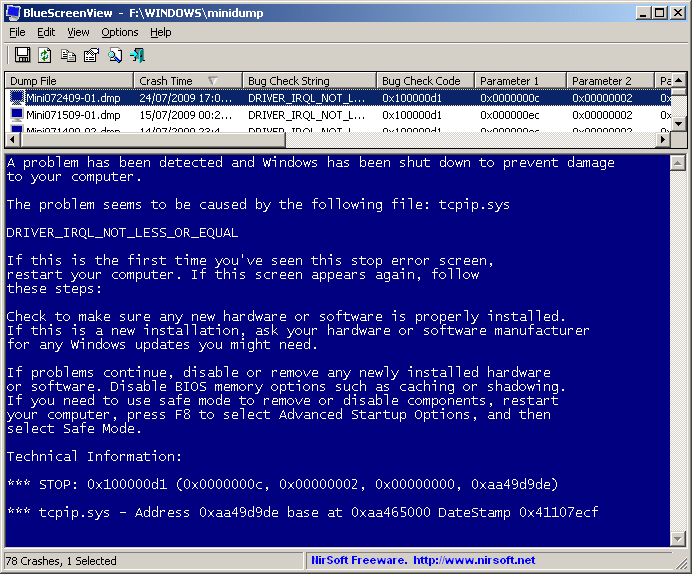
- Allows you to view a blue screen which is very similar to the one that Windows displayed during the crash.
- BlueScreenView enumerates the memory addresses inside the stack of the crash, and find all drivers/modules that might be involved in the crash.
- BlueScreenView also allows you to work with another instance of Windows, simply by choosing the right minidump folder (In Advanced Options).
- BlueScreenView automatically locate the drivers appeared in the crash dump, and extract their version resource information, including product name, file version, company, and file description.
System Requirements
- BlueScreenView works with Windows XP, Windows Server 2003, Windows Server 2008, Windows Vista, and Windows 7, as long as Windows is configured to save minidump files during BSOD crashes. If your system doesn't create MiniDump files on a blue screen crash, try to configure it according to the followinf article: How to configure Windows to create MiniDump files on BSOD
- BlueScreenView can read the MiniDump files of both 32-bit and x64 systems.
License
This utility is released as freeware. You are allowed to freely distribute this utility via floppy disk, CD-ROM, Internet, or in any other way, as long as you don't charge anything for this. If you distribute this utility, you must include all files in the distribution package, without any modification !
Download Bluesreenview (In zip file)
download Bluesreenview with full install/uninstall support
Copyright (c) 2009 - 2011 Nir Sofer


wah gak ngerti aku bahasa inggris matakuliah inggris q c
BalasHapus